


An AGI delivery truck delivers your data

We store data generated by the Revio in our storage server, which is regularly backed up and linked to our data delivery servers, which are linked to the Cloud via the Internet2 backbone at 10Gbps each. Data is primarily delivered through Globus, but our FTP remains on standby and other options are available as well. See below for further details.
“Out with the old, In with the new”
Please keep the following in mind
Beginning on the date the Administrator notifies you your data is ready (T), it will be subject to removal from our systems according to the following schedule:
- T+1 month: all data purged from Globus/delivery storage.
- T+2 months = S: subread data purged from primary storage.
-
S+14 days: subread data purged from backup storage
Subread data is completely gone/unrecoverable at this point! - T+6 months = H: HiFi/CCS & other analysis data purged from primary storage.
-
H+14 days: HiFi/CCS & other analysis data purged from backup storage.
HiFi/CCS & other analysis data is completely gone/unrecoverable at this point!
Therefore, if you need more time to retrieve and/or validate your data, please notify us as soon as possible! We are happy to extend further time to you. You may reply to the e-mail or contact the administrator directly at: FTPAdmin@FTP.Genome.Arizona.EDU(link sends e-mail) .
Note that all data removal and purging is done manually by a human, and often we don't strictly adhere to this schedule. Data is at times kept around for longer, sometimes only until we require free space. If you have lost your data in an incident, even if it has been much longer than the schedule described above, we may still have a copy and you're welcome to inquire with us at any time if we can re-deliver it to you.
We share large datasets using Globus, a secure, high-performance file transfer service used by research institutions worldwide. To ensure you can access your data, please identify which download method suits your needs below.
Step 1: Decide where to save your data
The account you use to log in determines where you are permitted to save files. Please choose the option that matches your workflow:
Option A: Central Storage
Best for: Moving data directly to a University Cluster, Supercomputer, or IT-managed high-performance storage.
Requires an existing institutional account at the destination.
Option B: Personal Computer
Best for: Downloading data to your laptop, a specific lab workstation, or an external hard drive.
Requires installing a small app on your computer.
Step 2: Setup & Login
Path A: For Central Institutional Storage

- Check with your IT Dept: Ensure your institution has an active Globus Endpoint. Ask them for the specific "Collection Name" (e.g., "University of Arizona HPC").
- Log In: Go to app.globus.org.
- Select Your Organization: On the login screen, look for the "Look-up your organization" box. Type your university or company name, click Continue, and sign in with your standard institutional credentials.
Path B: For Personal or Lab Computers
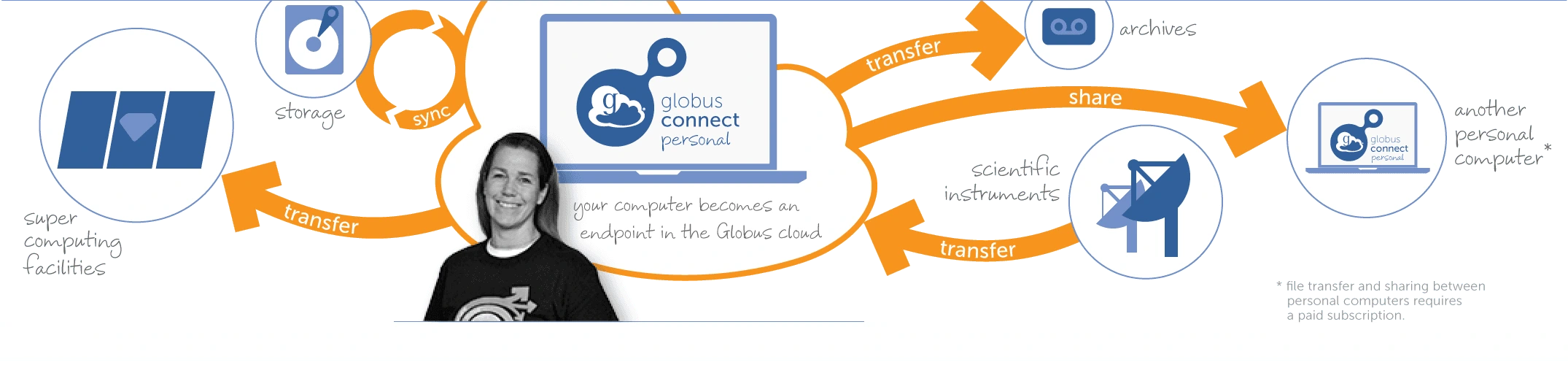
- Install the Software: Download Globus Connect Personal on the computer where you want the files to go.
- Log In: When prompted by the installer, you do not need an institutional account. You can sign in using Google (Gmail), GitHub, or ORCID.
- Create Your Endpoint: Follow the setup prompts to give your computer a recognizable name (e.g., "Lab Workstation 1"). This makes your computer visible to the Globus network so we can send data to it.
Step 3: Transferring the Data
Important: Action Required
If you have just created a new account or logged in for the first time, you must reply to our email with the address you used to log in.
We cannot grant you permission to access the data until we know exactly which account identity you are using.
- Open the Web App: Navigate to the Globus File Manager.
-
Select Source (Left Pane): Click inside the "Collection" search bar and paste our endpoint name:
Then navigate to the folder shared with you.
- Select Destination (Right Pane):
- If using Path A: Search for your Institution's endpoint name.
- If using Path B: Click the "Collections" tab, then "Your Collections," and select the personal endpoint you created (e.g., "Lab Workstation 1").
- Start Transfer: Select the files you want and click the Start button.
Note: You can close your browser once the transfer starts. Globus will email you when the transfer is complete.
Helpful Resources
Introduction
AGI's secure FTP service, connected to the Internet2 backbone at 10-gigabits/second, was the primary method used for data delivery. It remains available for any client requiring the specialized access only it can provide. Otherwise, we are now recommending and using Globus as the primary data delivery method.
Besides FTP and Globus, we also have other delivery methods available. Please see the corresponding section in the attached Data Delivery PDF for more details.
-
Data Download & Delivery document exported from LibreOffice Writer. The FTP Certificate is embedded within it. - Provide this certificate file to your application (such as Wget or LFTP) in order to establish a secure TLS connection with our server. This certificate is also conveniently embedded in the Instructions PDF file. After saving, remove the _.txt extension from the file name to ensure it's properly recognized by your application.